How to Update Your Net Worth in the Client Portal

Having an accurate and up-to-date net worth is an important part of what your advisor needs to help you navigate your finances. Within the Sound Stewardship Tamarac portal, you can update the most current values for your assets and liabilities, as well as add or remove items as your situation changes.
Accessing the Client Portal
1. Navigate to the Sound Stewardship website: https://soundstewardship.com/
2. Click Client Login in the upper-right corner.

3. Log into your client portal.
Viewing Your Net Worth
1. Hover over the Reports tab at the top of the page.
2. Under Financial Planning Reports, click Net Worth.
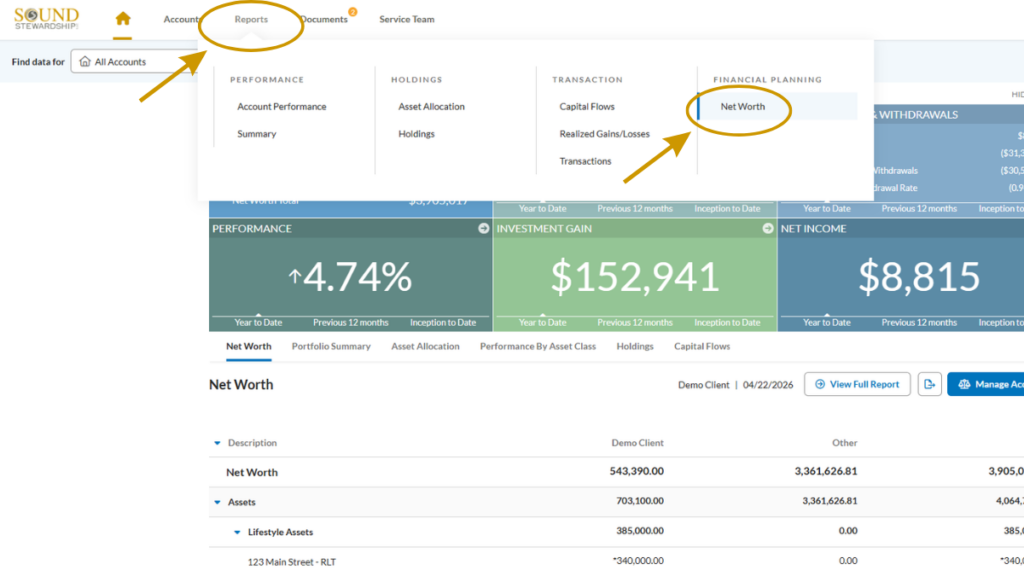
3. Your Net Worth report will appear.
An Important Note Before Updating Accounts:
– Do not update accounts managed by Sound Stewardship at Schwab and Fidelity.
– Do not update accounts which you linked through Yodlee.
These accounts update automatically for you.
Updating Asset Values
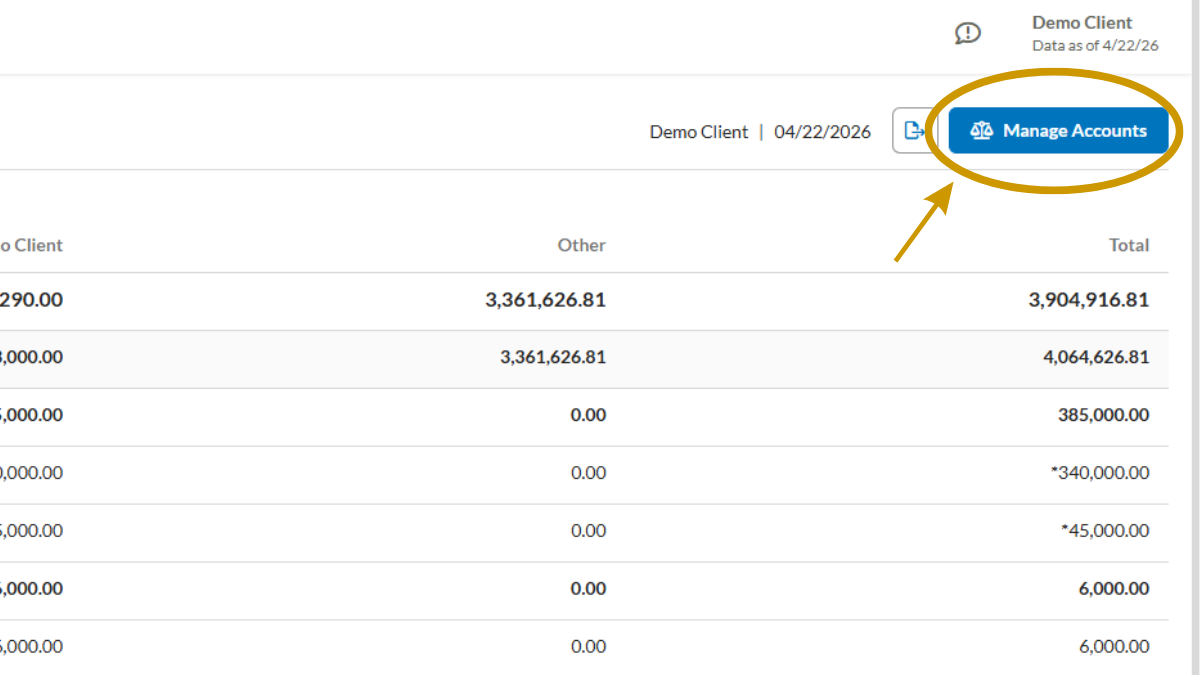
1. Click the Manage Accounts button.
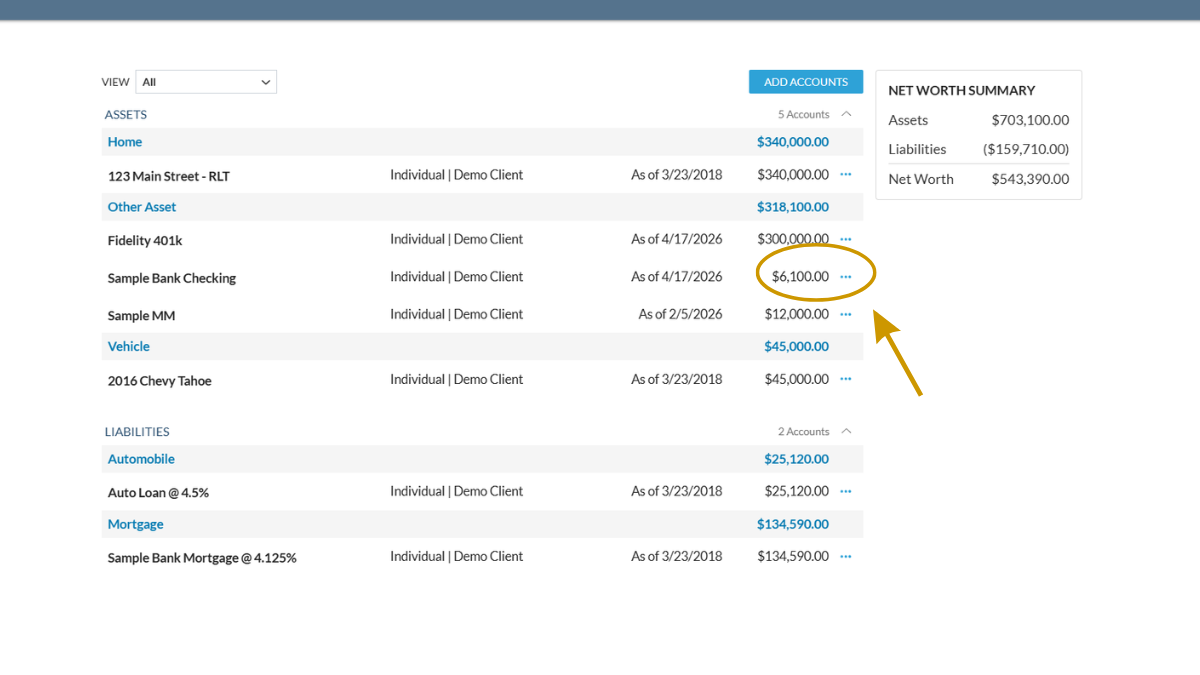
2. Locate the account you want to update (in this case, Sample Bank Checking).
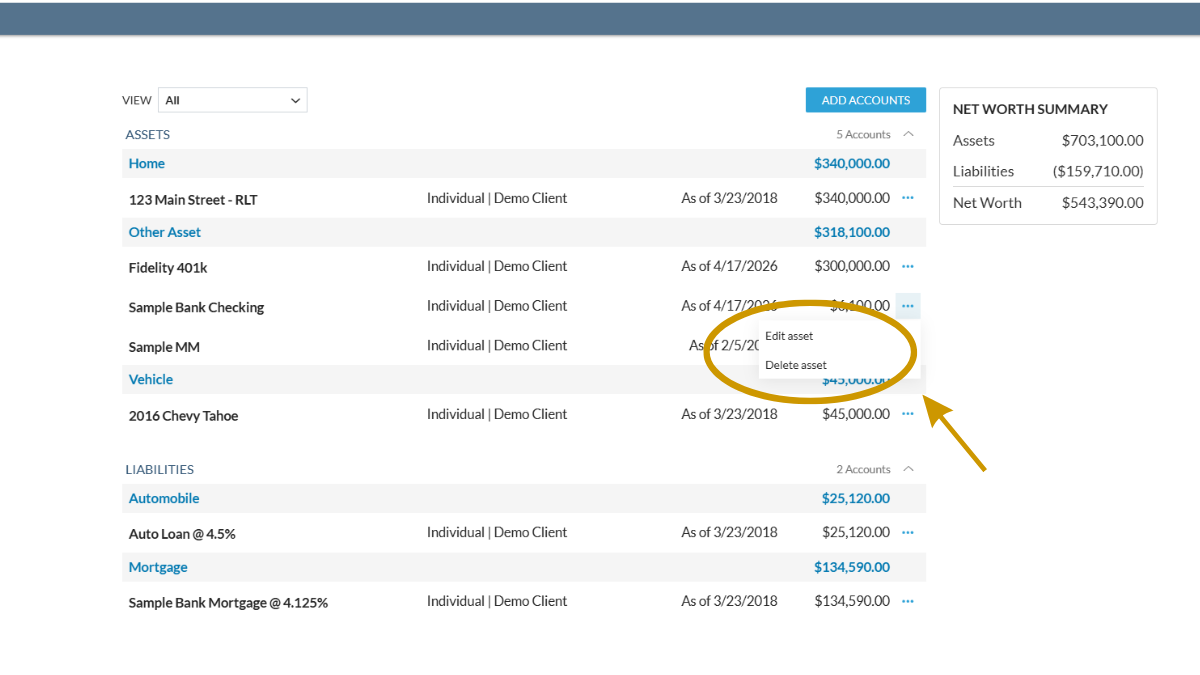
3. Click the three blue dots next to the account.
4. Select Edit Asset.
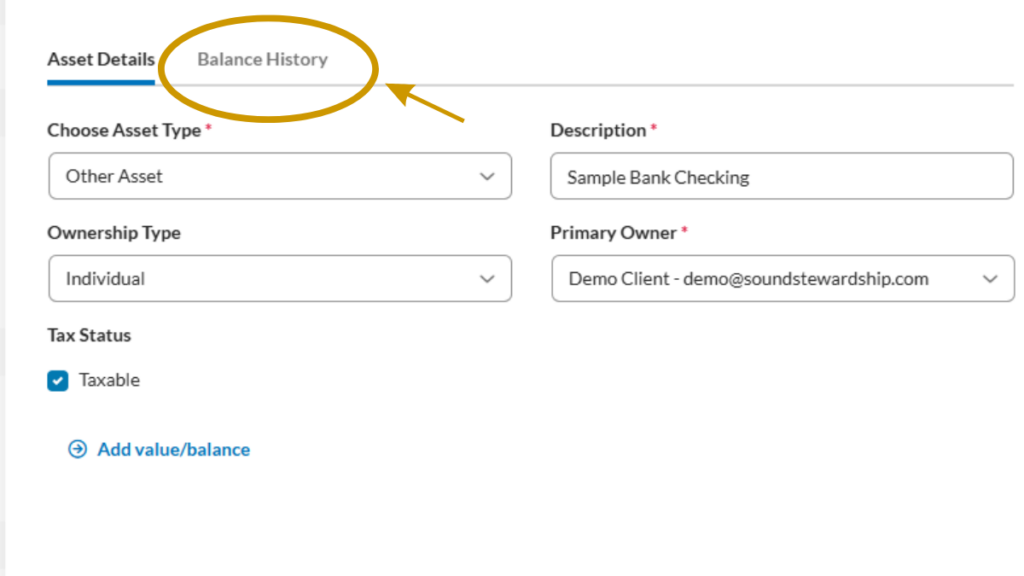
5. Click the Balance History tab.
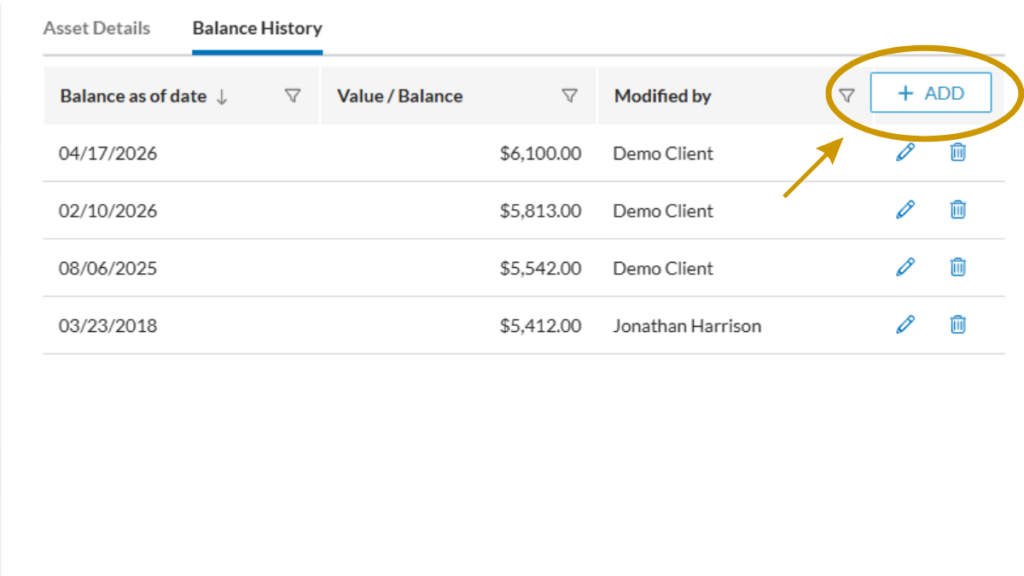
6. Click the “+ Add” button.
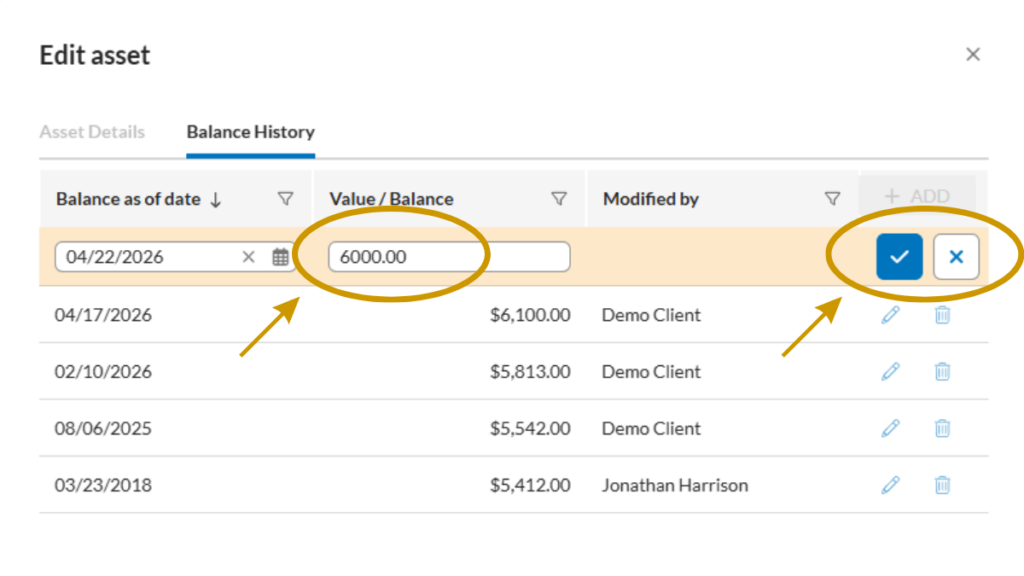
7. Enter the new account value (use the assigned date unless entering an older value).
8. Click the blue checkmark to save the entry and close the window.
Special Situations
• If an account is open but empty: Enter $1.00
• If an account is closed or the asset was sold: Enter $0.00 (do not delete the account)
Always add a new value. Do not overwrite historical values.
Finalizing Your Updates
1. Click the X on the Assets/Liabilities bar.
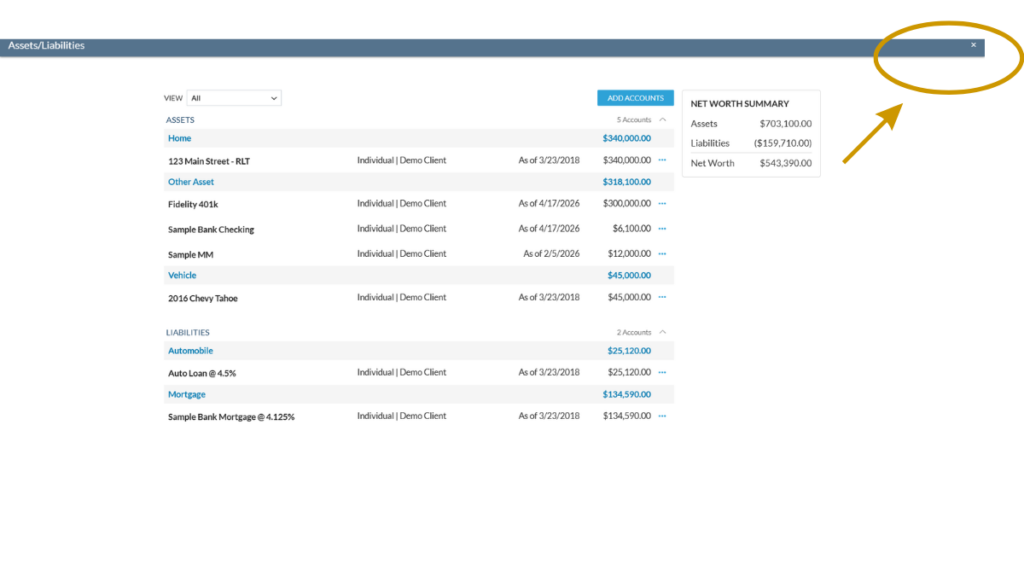
2. Confirm the Net Worth values have updated.
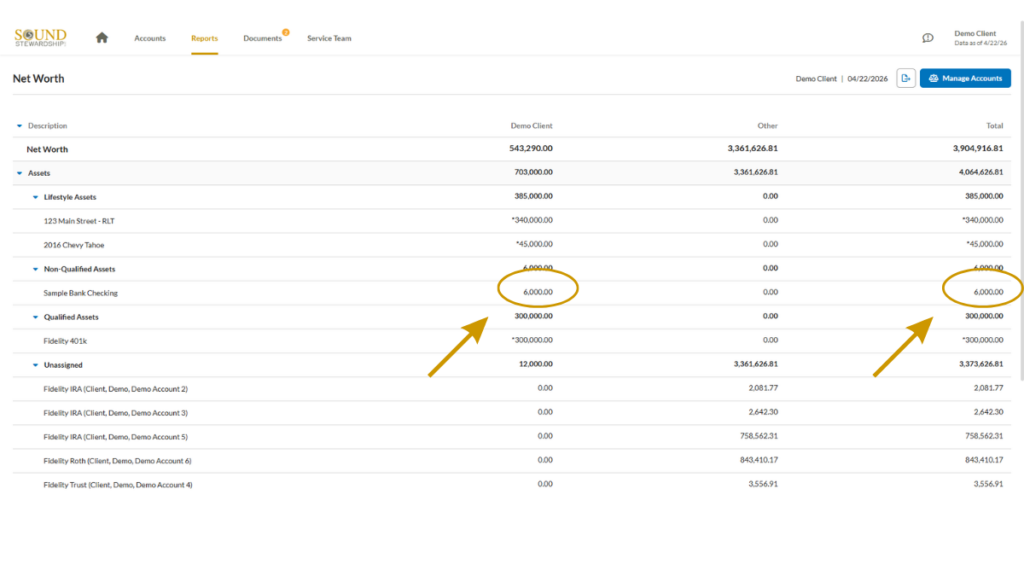
3. Log out of your portal.
Thanks for taking the time to update your Net Worth! Below, we’ve also included a video demonstrating this process. If you run into any issues, please reach out to let us know.